Showing posts with label poster. Show all posts

Monday, December 7, 2015

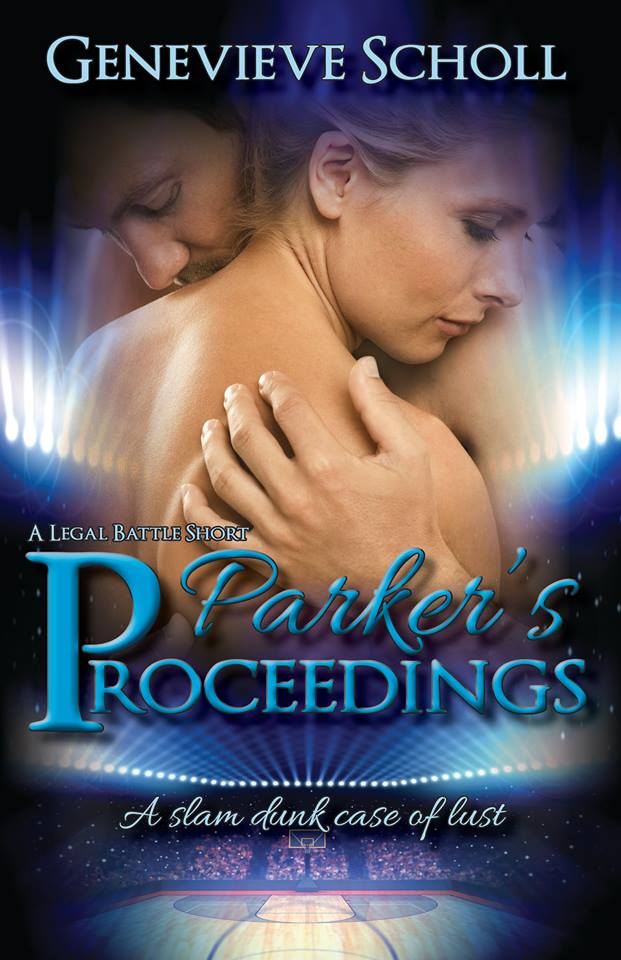
Review Spotlight: Parker's Proceedings

Today, we'll be checking out some of the awesome review comments made about Genevieve Scholl's Parker's Proceedings, A Legal Battle Short.

~


~

"Ashlee and Parker's story is filled with heat, passion, sweetness, and so much more. I was hooked from the beginning and hope that Ms Scholl continues with more installments to their story."
~ Ebony, Goodreads


"I loved this story! I love Ashlee and Parker! Sometimes love happens where you never thought it would or could! The book is very short so that gives me hope that we might get more from this amazing couple or Jake or Dorothy! 5 stars!"
~ Mary, Amazon US

~
TEXT - Author Bio


I'm just a small town girl with a heart for the country life. I'm very shy and pretty much a loner, but my writing helps me be more outgoing and talk to various people that I would otherwise have a hard time approaching. I don't write for the money or the fame, but rather to tell a story that needs to be told; whether that is my story or a character's story. As a lot of people know, from my various interviews, I started writing to express my anger and hurt over the bullying that I experienced in High School, but eventually I just realized that I loved to tell stories. I was born in Texas, grew up and still live in Upstate New York, and want to retire in Ireland.
~
TEXT - Contact Info

Facebook           Twitter           Goodreads              Blog
~

Amazon           Barnes and Noble

Monday, November 16, 2015

Review Spotlight: Touched by a Vampire

Today, we'll be checking out some of the awesome review comments made about Sophie Slade's first book in the Eternally Yours series, Touched by a Vampire.

~


~

"Holy hotness, Touched by a Vampire is 18+ indeed! I love a good paranormal read, and Sophie Slade's book gave me the entertaintment and excitement I was looking for.
Once I picked up, I could not put it down, the romance part and the suspenseful part was equally well written and kept my interest through the whole story."
~ Andie, Goodreads


"This is a great vampire erotic romance! The characters are described in detail, as are the "rules" of vampires. I loved the way that Sophie introduced all of the characters and their backgrounds. She took a tryst and turned it in to a love story that I just did not want to end."
~ Jennifer, Goodreads

~
TEXT - Author Bio

Sophie Slade is the author of Erotic Romance. She started writing TOUCHED BY A VAMPIRE, never intending to publish it. However, her husband read it, loved it, and encouraged her to finish writing the book. Now, this book is the first in the series ETERNALLY YOURS. Sophie has a Bachelor of Arts in Communications, News Editorial sequence, from the University of Tennessee at Martin, with a minor in English. Sophie is a full-time author and resides in Florida with her husband and children.
~
TEXT - Contact Info

Facebook          Twitter            Goodreads
~

Amazon           Smashwords          Barnes and Noble

Tuesday, November 10, 2015

Teaser Tuesday: Crossroads

The official cover has yet to be revealed. As an alternative, here's a quick teaser for book 2 in the Eternally Yours series, by Sophie Slade.


~
TEXT - Book Blurb
As the head of the North Vampire Coven and owner of Caprice Casino and Club Moroii, Lance Steel is a billionaire, Alpha male, and has more incredible good looks than any one man deserves. He is a great husband and father … but he’s also a vampire. His wife, Leila, is human and his son is a dhampir, half human and half vampire. But in order to live a human life with his wife and son, he wants to become human again.
As a brilliant doctor and scientist, Leila has developed a sunlight serum and is now wants to work on a cure for vampirism. Lane wants to become human again to give his family a normal, human life, but is Lance willing to give up his vampire and become human again, or will his decision cost him the lives of his wife and son? Which path will he choose at the crossroads?

~
TEXT - Teaser Posters


~
TEXT - Author Bio

Sophie Slade is the author of Erotic Romance. She started writing TOUCHED BY A VAMPIRE, never intending to publish it. However, her husband read it, loved it, and encouraged her to finish writing the book. Now, this book is the first in the series ETERNALLY YOURS. Sophie has a Bachelor of Arts in Communications, News Editorial sequence, from the University of Tennessee at Martin, with a minor in English. Sophie is a full-time author and resides in Florida with her husband and children.
~
TEXT - Contact Info

Facebook          Twitter            Goodreads.
~

Amazon           Smashwords          Barnes and Noble

Wednesday, October 21, 2015

Coming Soon: Courage in the Kiss

With Courage in the Kiss with the editors at Simply Sexy Reads, I thought it was time to introduce you to the story, in a little more detail.
The cover will be revealed closer to the release.
~
TEXT - Book Blurb
Hadley has been a member of the Williams household her whole life; she's practically one of the family. Younger son, Micah, is her best friend, who knows all of her secrets. Particularly her secret crush for his brother, Maxx.
Though Hadley accepts that he doesn't return the feeling, a shock rocks her stable world and threatens to expose her secret feelings. With her world turned upside down, Hadley must make a choice; tell Maxx the truth or move on with her life.
No matter what she chooses, the biggest question of her life dangles before her eyes:
Can she stick to her moral compass and remain a dreamer, even if that means she'll be alone? Or will Maxx and his natural charm have her in the palm of his hand, compromising everything she's ever held dear?
~
TEXT - Teaser Posters

~
TEXT - Extract Sample
Hadley couldn't help but wonder if he regretted staying with her, looking after her, letting her see his softer side. Was it all one giant mistake, because he thought she was too sick to remember?
“What will you do, if you leave?” Maxx asked, as though there was still a chance that she might stay.
She wanted to smack some sense into him, but didn't bother. She took a deep breath and thought about his question properly. What would she do with herself?
“Maybe go to school,” she admitted, since she'd never been to a proper school. As soon as Emerson took her in, she'd been home schooled, along with Maxx. Micah got the special treatment and went to a public school. By the time Maxx went off to college or work, she'd already spent a few years working for Emerson.
He'd never insisted on it, but she felt indebted to him. There had been no one else to take her in, after her parents died, and Emerson only did it because her father was the son of one of his old, long dead, friends. He insisted that it was his duty to care for her as his own child, but she'd never been able to accept charity. Not even from Emerson.
“I might go to art school. Finally,” Hadley decided, since that was something that had always interested her.
Maxx scoffed and she looked up sharply, ready to tell him to shove off, if he was going to degrade her dreams. “You don't need art school. You could probably sell your work the way it is, to some big collector in New York,” he claimed, with a faint smile.
She blushed, as she realised he was paying her a compliment. But it didn't change anything. It was too little, too late and it wasn't as if his kindness meant anything. “I could volunteer at the local museum. They're always looking for help and it would be something to put on a CV,” she admitted, thoughtfully. “Then, once I've saved up enough, I can try to repay your father for being so kind to me.”
“You intend to pay him back? For the last twenty years? Why? You don't owe him anything,” Maxx argued, as though she was wrong to feel the way she did. Well, he could take his father's money and everything Emerson had built at work, to use as his own, but she wouldn't.
“I owe him everything,” Hadley corrected him.
Maxx went quiet for a moment, with a look that said he was reluctantly accepting that she might be right, but that he didn't have to like it. “How would you like to have a paid job, right away?” he offered, out of the blue.
“Working for you or your father's company?” Hadley guessed, shocked that he would even consider it. What the hell was he thinking?
“Yes. I’m desperately in need of a PA. I’m sure you’d do quite well in the position,” he claimed, with a faint hint of a smile.
She guessed there was a deeper meaning there, but she was too tired and too drained from her migraine to understand it. And she was too pissed at his presumption, to cater to his selfish whim. “So, I leave this house, where I'm stifled and held prisoner, working for your family, so that I can work for you, to be stifled and held prisoner, working for your family? Gee, what a great idea,” she mocked him, as she got up and headed for the door.
Maxx caught her wrist, before she could touch the handle. “That's not what I meant.”
“No, you meant that it would solve your problems and give me an excuse to get out of this house. That's not what I want,” she argued, ready to start a screaming match, if he kept this up. She didn't know what he was playing at, but this constant back and forth was making her dizzy.
“You're so damned stubborn!” he bit out, letting go of her, in anger.
Hadley was in no mood to take it. “I wonder where I get that from!”
“You're infuriating. I can't even talk to you,” Maxx complained, bypassing her and grabbing the door handle. He stormed out, leaving her feeling weak and frustrated.
She put her hand to her head and realised how royally she'd just fucked up. Why couldn't she keep her mouth shut? He was just beginning to show affection for her, even if it was mild and not the kind she wanted. He'd opened up, to actually talk to her like a human being and she'd gone on the defensive.
Letting out an aggravated groan, she fought back the tears and tried to compose herself. Why did she always sabotage herself?
It was pointless.
She cried freely, in the comfort of her own room, holding her head in her hands. She was so fed up with crying all the time and half the time not knowing why. This time was obvious.
She hated her life. She hated loving Maxx. She hated that she couldn’t hate Maxx. She hated that anything she did, for someone else, was always wrong. She hated that she had no friends and no family. She hated that her parents were dead. She hated never feeling good enough for anyone.
She forced herself to stop.
Getting up from the floor, Hadley spotted the painting of her and Conway sitting on the dressing table. She crossed to it and thought about the lies and deception behind it. Distraught, she threw it across the room, only just missing Maxx as he walked in.
~
TEXT - Author Bio
Author Logo 0.3
Elaine White grew up in a small town on the east coast of Scotland. She is an author of paranormal romance, crime and MM romance.
Fighting cancer in her early teens taught her that life is short and dreams should be pursued. She lives vicariously through her independent, and often hellion characters, while living comfortably at home with a pack of wolves cleverly disguised as one standard poodle.
A self-professed geek, Elaine has fallen in love with the research linked with her novels. The more obscure the better. She has recently delved into reading and writing MM romance/erotica and is now a happy addict of the genre.
~
TEXT - Contact Info
Facebook              Goodreads              Website              Wattpad
Pinterest              Blog              Twitter
~

Saturday, October 3, 2015

How to: use Picmonkey

Picmonkey is one of those invaluable sources, when you're an author who needs to make multiple teaser posters for your book. Pixteller has one feature that I wish Picmonkey had, which I'll cover in a later post : they save your posters, so that you can go back and tweak them later, if necessary. For example, if a month has passed and you suddenly spot a spelling mistake/wrong name/grammar mistake in your teaser, you can go back to Pixteller to change it, without having to remake the entire poster, and effects. Picmonkey can't do that. But it can do so much more...

Unfortunately, most of the options are "Try it and See". Each option looks differently on each image, so please remember that what works on one image might not work on another. This is especially true when taking quality and visibility into account. Some images with detail can become too dark or blurred using certain options.

WARNING: There are two versions of this. The free and the premium. I have access to the premium account and will be showing you what that can do, to cover everything Picmonkey has to offer, but don't worry! If you want to use the free version, the Premium items are marked with their monkey, wearing a crown.


~

First off, let's start with the menu. It can get a little confusing, if you've never used it before.

Here's a screenshot of their home page:


Now, if you want to add effects and text to a picture, hover over "Edit" and you'll see this - 


Then, you simply choose a picture and edit it (as I'll explain how to do later.)

If you choose "Touch Up", you'll see this - 


And "Design" will give you this - 


"Collage" will show you this - 


~

I know, they all look basically the same. But, they do give you a good idea of what each option will do for you, which is the important part. Also - personally - I've never used Touch Up, because you have all those options within the "Edit" option anyway. "Edit" and "Touch Up" are the only two that are inter-changeable. You can click one and access the options of the other. Also, if you've already chosen a picture you want to adapt and then realise that you really want to use the "Design" blank canvas option, you can do that in "Edit", without leaving and starting from the homepage.

But we'll come back to that later.

Let's choose a picture.

~

I'm going to choose the "Edit" option, with a picture found on a free-to-use website, Pixabay. Here's the original - 


To start, I'm going to show you how to adapt the colour/effects of this picture, to create something unique. Because, let's face it, a free picture of this good quality is going to be snapped up and used by anyone who knows where to look. So whatever you do to it has to make your poster stand out amongst the rest.

~

This is your basic "Edit" page, but it has a lot of offshoots, so brace yourself for a lot of screenshots. :)


What do these do? Simple and they're mostly self-explanatory, but let's cover them anyway. Click on the box you want (the one with the word and picture) and you'll see the option it offers. NOTE: You can only open one at a time, but feel free to play around with them. The third and fourth buttons from the left, on the grey bar, are the Undo and Redo buttons:


~

But here's what they do:


Crop - in the drop down menu, they have set sizes. If you know what size you want, try that first. Or you can type in the pixel size you want into the Actual Size boxes. As with all of the options Picmonkey offers, it will only be made if you click "Apply". Don't click it and the picture will go back to how it looked, before you clicked that option box. Or, click "Cancel".

Canvas Color - this is where you can move between editing a picture and starting anew. If your picture isn't going well and you decide it would work better as a layer, then simply click Canvas Color and choose a background colour, then click apply. BUT: This will UNDO anything you've previously done, so be careful with this one.

Sharpen - change the sharpness and clarity of your picture.

Rotate - as it says: you can rotate your image any way you want, but if you want to do in-between options, then you only get that choice on a layer. There's a little circle, when you click on the layer, that allows you to turn it any way you want. This also works for Text, so don't worry about having to use this option for that.

Resize - great, if you know what size you want your picture to be. But be careful - some images can distort and become pixellated if you enlarge or reduce it too much. Always try to keep an eye on the quality of the image.

Exposure - this one is a good option if you have a really dark picture that you want to lighten, but mostly you can do that with effects, so I tend not to use this one too much. As I said before, playing around with the choices will help you become familiar with whether you need to/want to use them or not.

Colors - this is similar to "Exposure". It's not one that you really have to touch, unless you're dealing with a dark/difficult picture, where the colours aren't as clear as you want them. Again, try it and see how you feel about it.

~

Next, we move on to "Effects", which has a really long list of options that would take way too much space to show here. Feel free to explore to your hearts extent. Here are a few that I love - 


You'll have to try most of these for yourself, to see what they do and how the effect changes your image. Some images look great with just one or two effects, some don't need any and some need a lot of work. It's all up to you, at this point.

Here's an example of Orton, then Rapture and Bokeh Shapes (in that order) being used on the sample image:


~

Next up, we have the "Touch Up" options and "Text", both of which are fairly simple options.


The touch up options are only possible on a picture, not a layer. But we'll come back to that in a minute. That little butterfly logo is where you'll find the layouts, so we'll talk about layers there. But, to make an effect work on a layer, you have to make it part of the overall picture. I'd suggest you do this last, because you can't undo it and then keep moving your layer. So, if you're not entirely sure where you want your layer, wait until you've figured that out, before applying your effect to it.

Also, the text on offer are pretty awesome. Just click the font you want, then click "Add Text" and you'll get a window appearing on your picture, where you can add your text. If you have a font you want to use, already installed on your computer, that Picmonkey don't have, then you have the option to use it, by clicking "Yours". If it doesn't work, you can click "Ours" to go back to the fonts Picmonkey offer.

~

Layers:


The Overlays on option are great! You can get stars, hearts, shapes, ribbon, tape and so much more. Explore the options and try them out. You can change the colour, size and effect of each, with the drop down menu provided on each layer.


Each option: Add, Darken etc: will change how the layer appears. If it's not a vector (with a blank background, like this layer) then choose 'darken' and it's likely to make the layer blend into the background image a little better. But it's not a guarantee, so always try the other options and see how it turns out.

To "bind" a layer to the background image, check out the grey bar again.


That little icon, second from the right, is your "combine all image elements" option. This will merge ALL layers, overlays, text and more into the background. That means that, once you merge them, you CANNOT move your text, effects, layers, overlays or anything! So many sure you're certain about what you're doing. It can be undone, but it will undo anything you did after the merge, as well.

If you want, you can merge at different stages, save and then undo the merge.

The "Frames" option is simple, too, so I won't bore you with the details. It goes around the edges of the picture, not in the middle, so if you want a frame in the middle of the picture, perhaps to frame an object or your text, then use the layers/overlays option instead.

Example of a frame:


~

The last two menus are Textures and Themes, two of my favourites. Not only do they provide unique and brilliant options, to make your images special, but they bundle similar options together, so that they're really easy to find. If you're doing a vampire teaser, then choose the Vampire tab, the same for Witches, Demons etc.


Textures will add the texture to the background of your image, like so. I used the metal option, to make it more obvious as an example. I used the "lighten" choice on the drop down menu, to keep it simple and still show the effect.


There are others that you can use, but now I'm going to show you the Themes options. For this picture, I get a vampire vibe, so I'll use the Vampire tab and use the blood options.


~

So, now that I've shown you the options for "Edit" and "Touch Up", we'll go ahead and venture into the other two menu items:

"Design" is exactly the same as above, only that you start with a blank canvas and add layers. You can then merge them, when you're ready. There's nothing different about the "Design" option, in terms of the tabs and side menu's. It's all exactly the same.

~

"Collage" is a different matter altogether. Here's how you start. On this page:


Choose which option you want to use, to get your pictures from. I'll use Computer. In this option, you can choose multiple images to add to your collage. Even if you're not sure about them, you can add them and you don't have to use them all.

I'm going to add a bunch of free-to-use images to an option, to show you. Here's what you'll see:


Now, on the left are your options for changing the layout of the white boxes on the right.

In order, they are:
Images
Layouts
Swatches
Background

In Images, you'll see what pictures you've uploaded. When you add one to the collage, it will show a tick in the bottom corner. You also have the option to "Remove Unused" images, if you change your mind, or want to remove images you didn't need.

Layouts, helps you change the number of boxes and the layout of where they sit.

Swatches offer background images that can be placed into the boxes. But, if you add a swatch into a box, you can't add a picture into that same box. And, the swatch will not become a background to your entire collage. Only for the individual box.

Background is where you can expand or limit the spaces between boxes, add a colour to the background, round the edges to the boxes or even make the background transparent (transparent backgrounds are great, if you need a vector)

~

So, here's your final collage, with the images I uploaded and two of the swatches on offer, as well as a colour background. Once you've done this and saved your design, you can then go back to the main menu, using the white X on the top right corner, and choose the "Edit" option to add text and layers, if needed.


~

VOILA!

You're done. You have a great image, with text, layers and whatever else you wanted to add. I hope you had fun.

Don't be scared to share your image with us. We'd love to see what you made.